Production workflow · 9 min read
A Reliable Batch Image Conversion Workflow for Teams
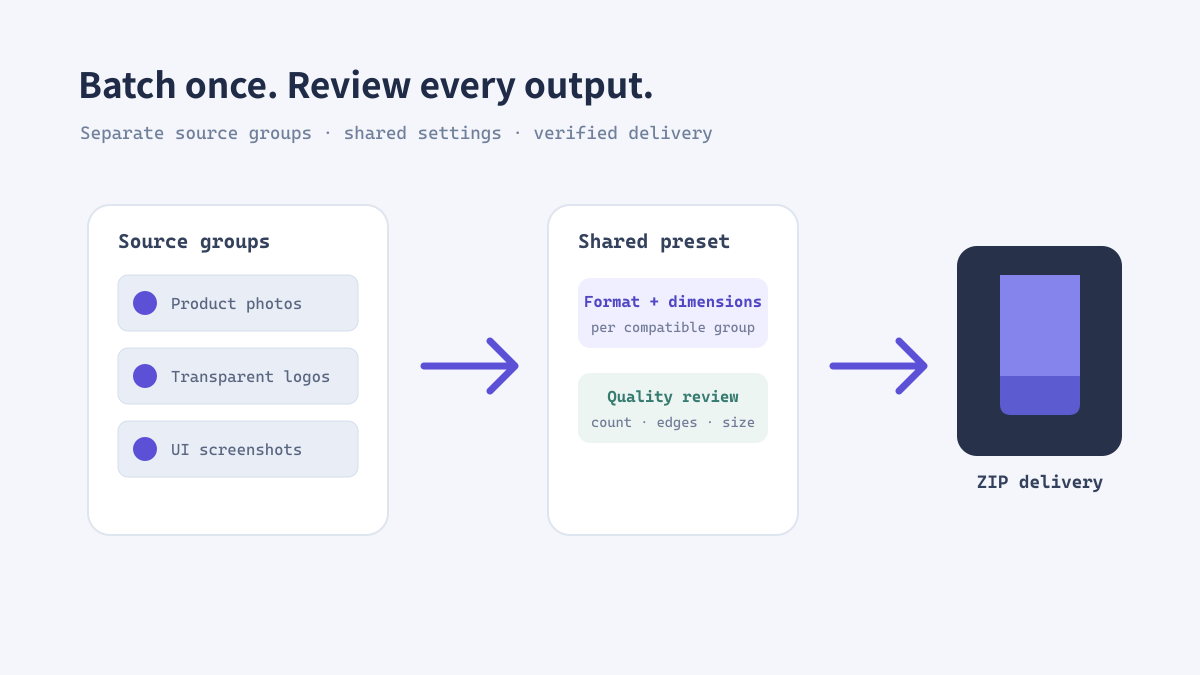
Batch conversion saves time only when the output remains predictable. A shared process for file grouping, dimensions, naming, and review prevents a fast export from turning into inconsistent assets that need to be fixed one by one later.
Prepare a batch before opening the converter
Group files by their intended use
Separate photographs, transparent logos, screenshots, and illustrations when they need different formats or quality settings. Mixed files can technically be converted together, but one setting may be wrong for part of the batch.
Keep a source folder untouched and make a clearly named working copy. Decide the target dimensions from the actual page, app slot, or delivery specification rather than choosing one number for every project.
Run a consistent batch conversion
Use one tested preset per group
If different groups need different formats or dimensions, process them separately. That small extra step makes the results easier to explain and audit.
- Select one group of compatible source images.
- Open the ImageTool.cc batch converter and choose the required output format.
- Set image and canvas dimensions separately when the output frame must be standardized.
- Convert the batch and download the resulting ZIP.
- Extract the archive into a staging folder and compare the file count with the source group.
Real example: a weekly product catalog update
Make the export repeatable
A team receives 40 product photos and 12 transparent logo overlays every week. The photos may be delivered as JPG or WebP at catalog display dimensions, while the logos need transparency. Split the batch, apply the relevant settings to each group, and retain the original files so a later campaign can use a different crop.
Review the output before publishing
Catch the mistakes a ZIP cannot show
- Confirm every expected file is present and filenames remain distinguishable.
- Open a sample from the beginning, middle, and end of the batch.
- Check transparency, orientation, dimensions, and visual quality.
- Compare the output file size against the source and the intended delivery limit.
- Keep source, staging, and approved export folders separate.